Setting up OpenID Connect SSO with Azure AD
This guide explains how to set up an OpenID Client in Azure AD, for use with Argus OpenID integration.
Instructions
- Log on to https://portal.azure.com with your administrator account
- Choose
App registrations - Choose
New registration - Choose a suitable/descriptive name, e.g. "Argus". Keep selection for "Single tenant" and "Web"
- Go to the new application instance
- Copy the
client_idfrom the created application, and send it to mnemonic: ??? note "show screenshot"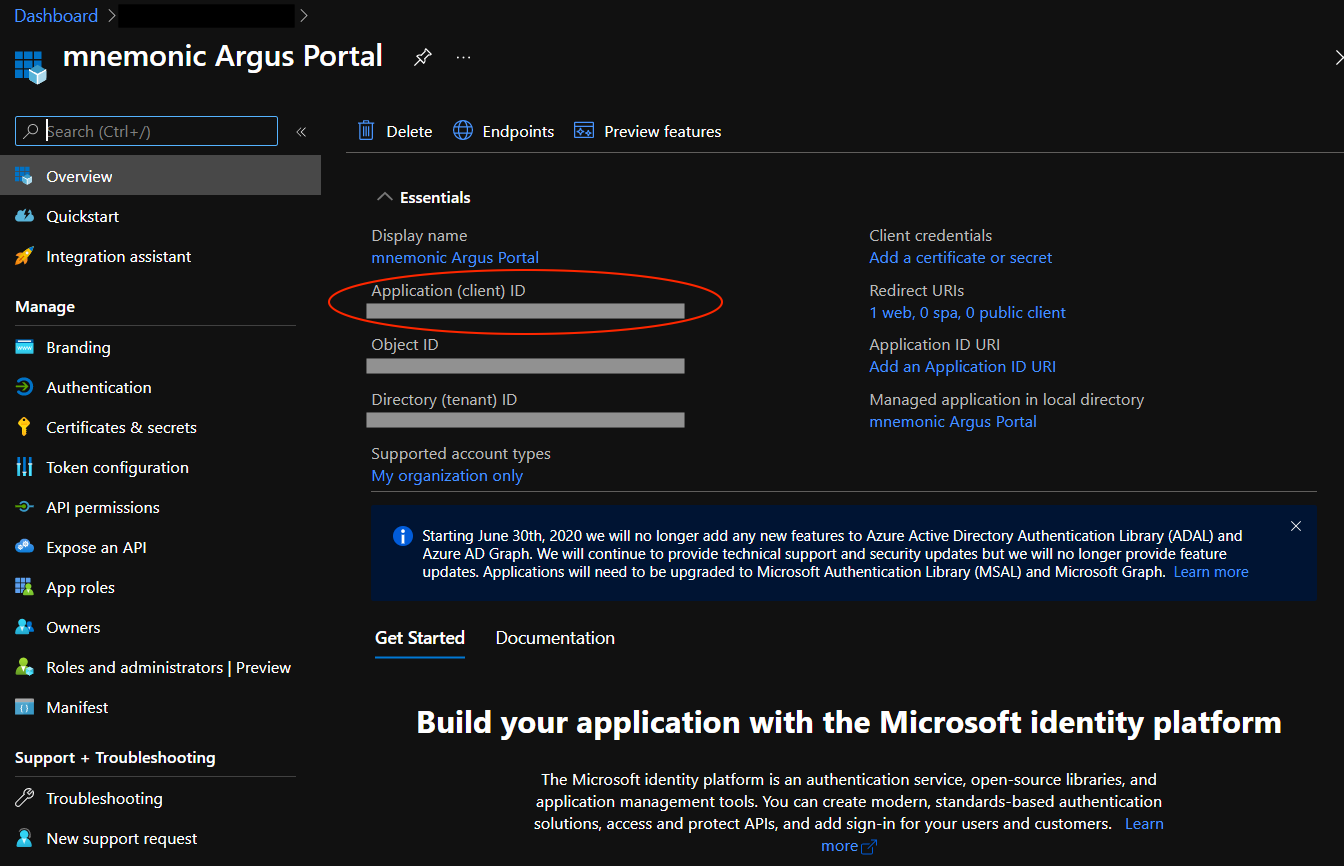
- Choose
Authentication - Enter the Redirect URI as
https://portal.mnemonic.no/spa/authentication/openid/provider/myprovider/authenticate(wheremyprovideris provided/agreed with mnemonic). ??? note "show screenshot"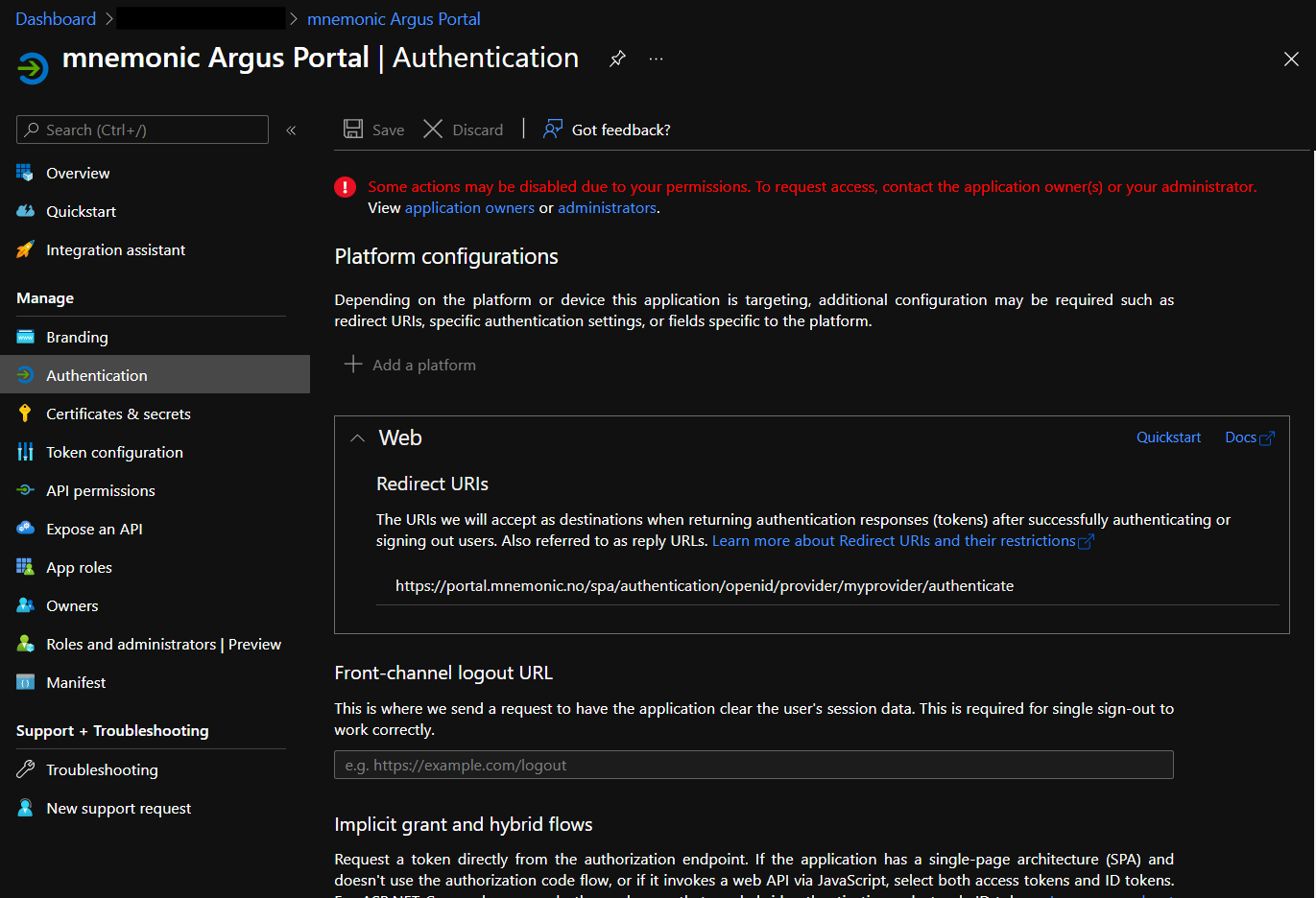
- Choose
Save - Choose
API Permissions - Select
User.Readand chooseGrant admin consent for <your organization>
When mnemonic has received the client_id and completed configuration
in their end, you should be able to test SSO.
User mapping
The default setup with Argus will use the email claim to identify the
user.
Currently, all users must be defined up front in Argus, and configured
with the email address that matches the email address returned by Azure
in the email claim.
Authorization
If desirable, you can add authorization of users in Azure AD, before they are redirected
back to Argus. This is done by adding users and/or groups to the Users and groups
tab in the application instance under Enterprise Applications.
If this is set up, only users added to the application will be able to successfully redirect back to Argus.